vue如何实现tabbar
实现 TabBar 的基本结构
在 Vue 中实现 TabBar 通常需要创建一个包含多个选项卡的组件,每个选项卡对应不同的内容或路由。可以使用 v-for 动态生成选项卡,并通过 v-model 或 v-bind 管理当前选中的选项卡。
<template>
  <div class="tab-bar">
    <div
      v-for="(tab, index) in tabs"
      :key="index"
      class="tab"
      :class="{ 'active': currentTab === index }"
      @click="currentTab = index"
    >
      {{ tab.name }}
    </div>
  </div>
  <div class="tab-content">
    <component :is="tabs[currentTab].component" />
  </div>
</template>

<script>
export default {
  data() {
    return {
      currentTab: 0,
      tabs: [
        { name: '首页', component: 'Home' },
        { name: '分类', component: 'Category' },
        { name: '我的', component: 'Profile' }
      ]
    };
  }
};
</script>

<style>
.tab-bar {
  display: flex;
  justify-content: space-around;
  background: #f5f5f5;
  padding: 10px;
}
.tab {
  cursor: pointer;
}
.active {
  color: #42b983;
  border-bottom: 2px solid #42b983;
}
.tab-content {
  padding: 20px;
}
</style>
结合 Vue Router 实现路由切换
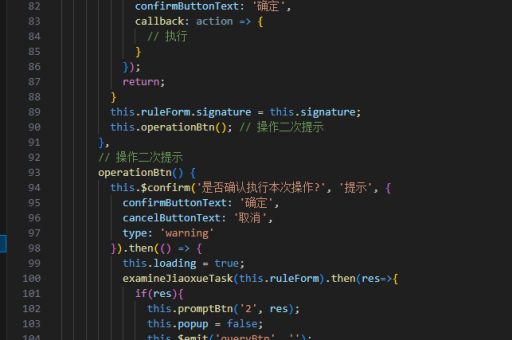
如果希望 TabBar 切换时跳转不同路由,可以结合 Vue Router 实现。通过 router-link 替代普通 div,并设置路由路径。
<template>
  <div class="tab-bar">
    <router-link
      v-for="(tab, index) in tabs"
      :key="index"
      :to="tab.path"
      class="tab"
      active-class="active"
    >
      {{ tab.name }}
    </router-link>
  </div>
  <router-view />
</template>

<script>
export default {
  data() {
    return {
      tabs: [
        { name: '首页', path: '/home' },
        { name: '分类', path: '/category' },
        { name: '我的', path: '/profile' }
      ]
    };
  }
};
</script>
使用第三方 UI 库快速实现
许多 Vue UI 库(如 Vant、Element UI)提供了现成的 TabBar 组件,可以快速集成。
以 Vant 为例:

<template>
  <van-tabbar v-model="active">
    <van-tabbar-item icon="home" to="/home">首页</van-tabbar-item>
    <van-tabbar-item icon="search" to="/category">分类</van-tabbar-item>
    <van-tabbar-item icon="user" to="/profile">我的</van-tabbar-item>
  </van-tabbar>
  <router-view />
</template>

<script>
import { Tabbar, TabbarItem } from 'vant';
export default {
  components: {
    [Tabbar.name]: Tabbar,
    [TabbarItem.name]: TabbarItem
  },
  data() {
    return {
      active: 0
    };
  }
};
</script>
添加图标和动画效果
为 TabBar 添加图标和切换动画可以提升用户体验。可以使用字体图标(如 Font Awesome)或 SVG 图标,并通过 CSS 过渡效果实现动画。
<template>
  <div class="tab-bar">
    <div
      v-for="(tab, index) in tabs"
      :key="index"
      class="tab"
      :class="{ 'active': currentTab === index }"
      @click="currentTab = index"
    >
      <i :class="tab.icon"></i>
      <span>{{ tab.name }}</span>
    </div>
  </div>
</template>

<style>
.tab {
  transition: all 0.3s ease;
}
.tab:hover {
  transform: translateY(-5px);
}
</style>
响应式设计
通过媒体查询或动态样式调整,确保 TabBar 在不同设备上显示良好。
@media (max-width: 768px) {
  .tab-bar {
    flex-direction: column;
  }
  .tab {
    padding: 5px;
  }
}